When you’re ready to publish your content (pages) to go live (make it visible on your website to public), please follow these steps:
1. Save and Approve Pages
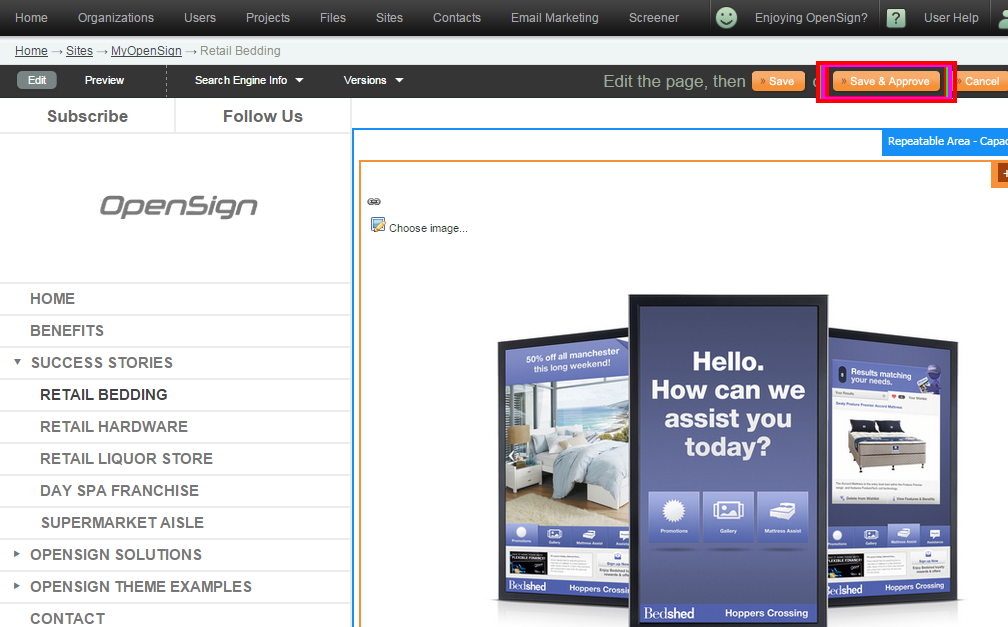
Once you’ve added all your content to a Page, Save and Approve the changes you made. If you cannot see Save and Approve button then please check your access level with your administrator.
2. Publish
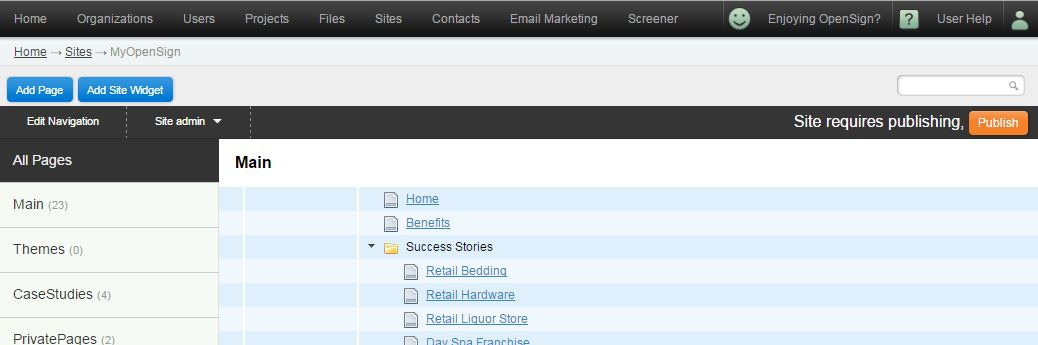
Return to the sites editor, in the top right corner you will see an orange Publish button. This button will only appear if you have approved changes.
Force Publishing Your Website
If the publish button has not appeared and you have approved pages, there are some instances when you’ll need to force publish your website. This includes updates to site widgets, site utilities, navigation and other non-standard setups.
To do this click on Edit Navigation and then “Save and Publish”. This will force every approved page in the website to be published.
Reverting Changes
Incase you wish to revert your changes, you can do so by following these instructions.
Can’t see your changes?
If you have clicked publish and still can’t see the changes, it could be because of two reasons.
1. Pages are still publishing
2. Current site is cached – How do I clear cache?
If you have waited longer than 30mins and are confident the page is not cached and publishing is complete, please submit a request and we’ll take a look.