Screener makes it easy for its users to monitor multiple devices at the same time. You can easily set this up so that you can monitor and can be alerted whenever a device is offline, or for any other issues with memory, battery level or the code.
In this tutorial, we will teach you how to send real-time alerts to your email.
First, let's set up a Health Profile. This is where you link your devices so Screener would know what to check in order to alert you accordingly.
1. Go to your screen network.
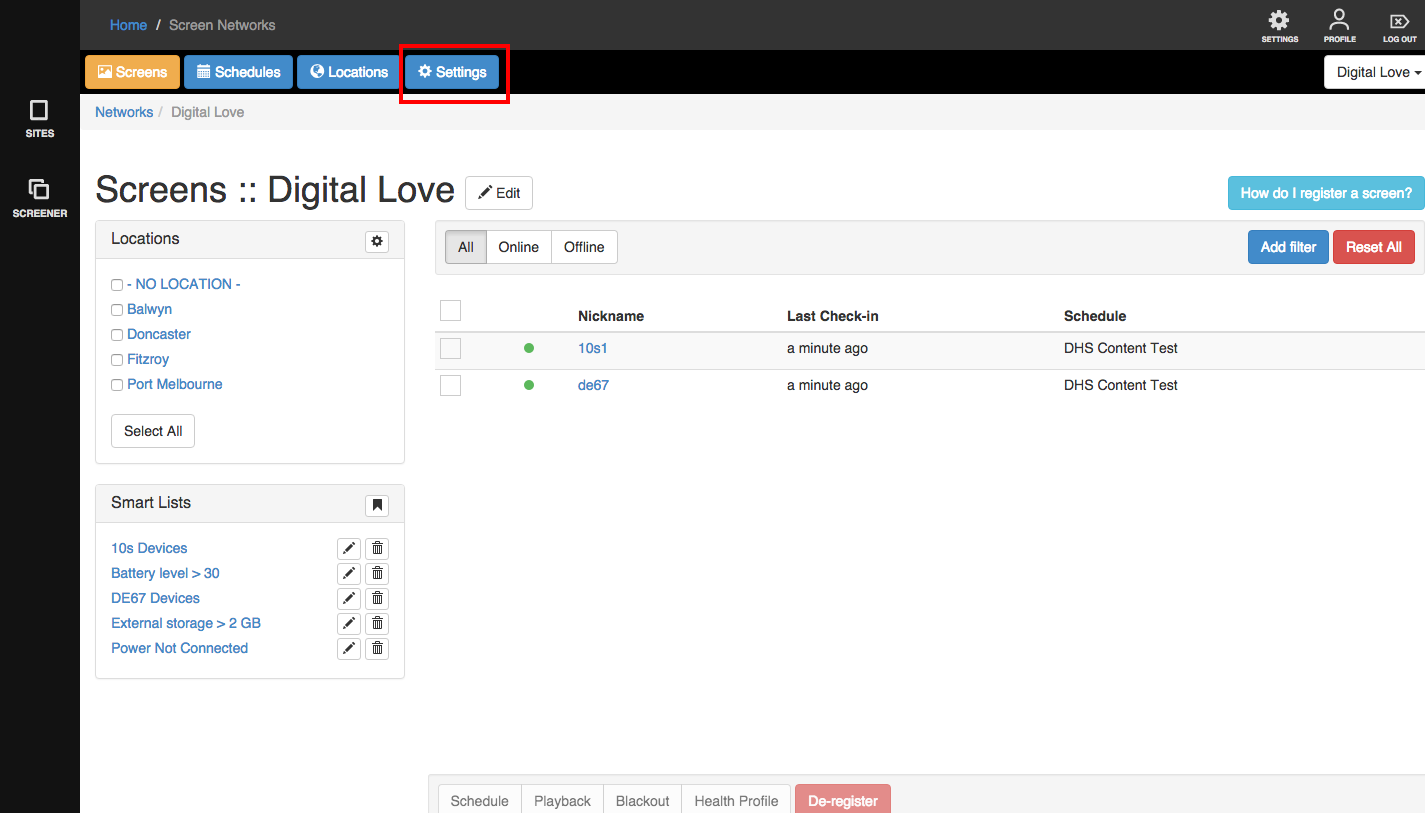
2. Once in, click on the blue "Settings" button.
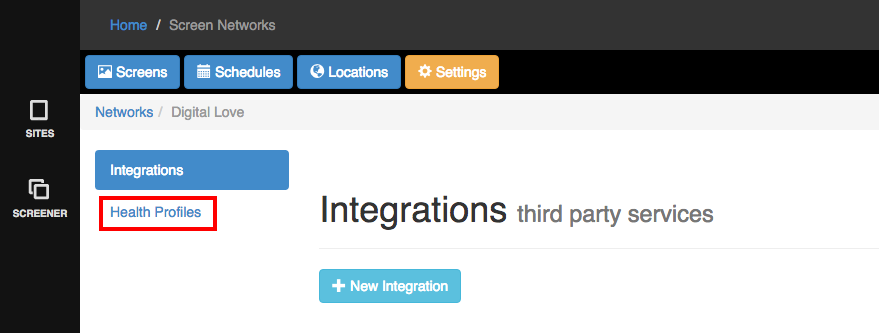
3. You will see 2 tabs on the left side of the screen - Integrations and Health Profiles. Click on 'Health Profiles'.
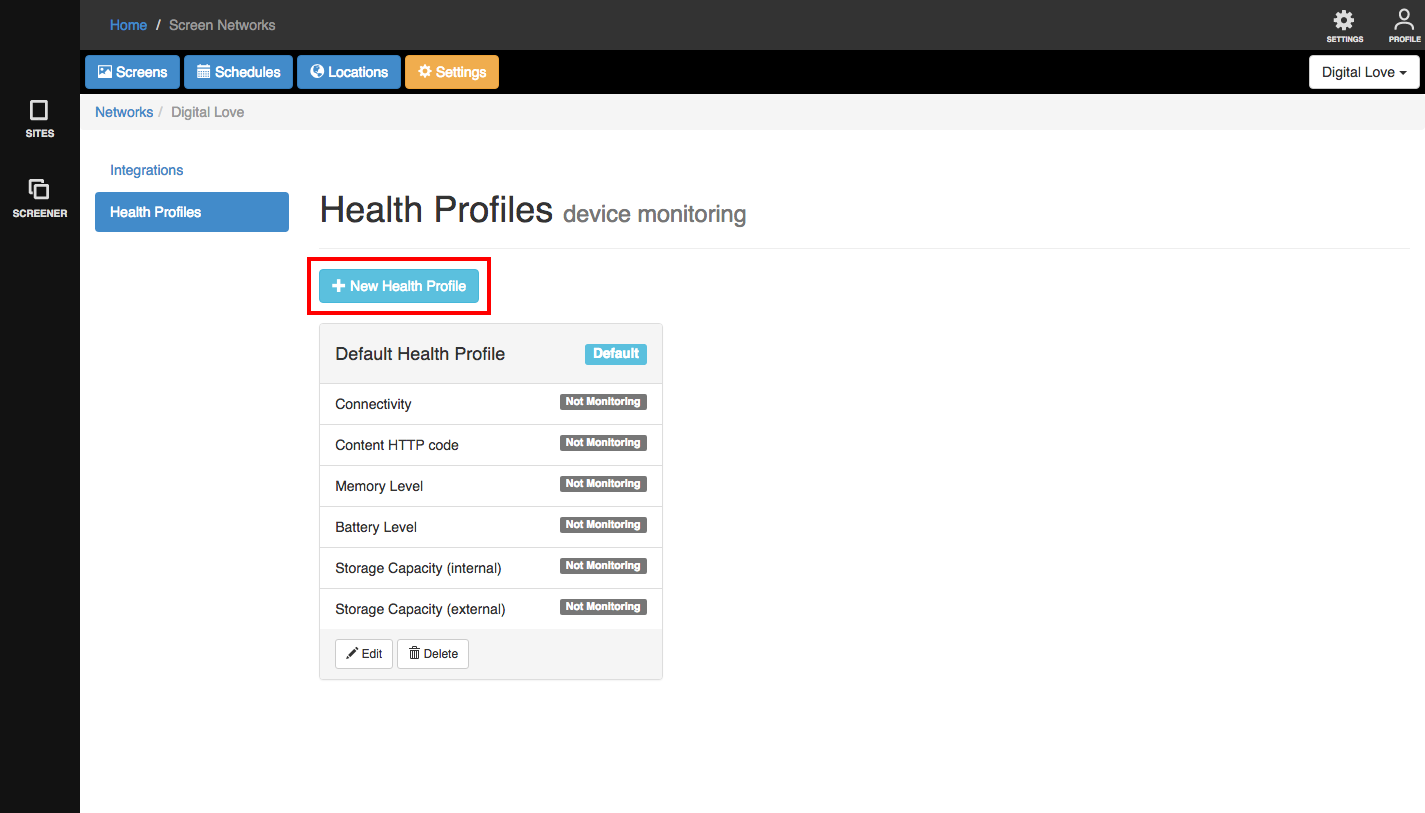
3. In here, you will see a list of available Health Profiles. There will always be one default Health Profile, but this is not monitoring anything. Click on '+ New Health Profile'.
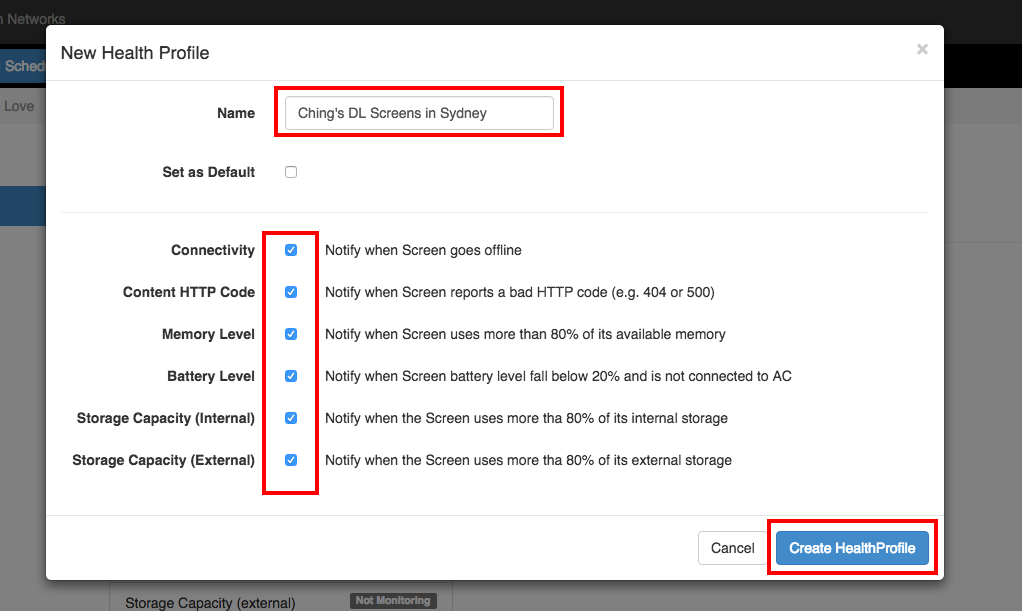
4. A light box will appear. Give this Health Profile a good name and check every box of what you wish to monitor. Once done, click on 'Create Health Profile'.
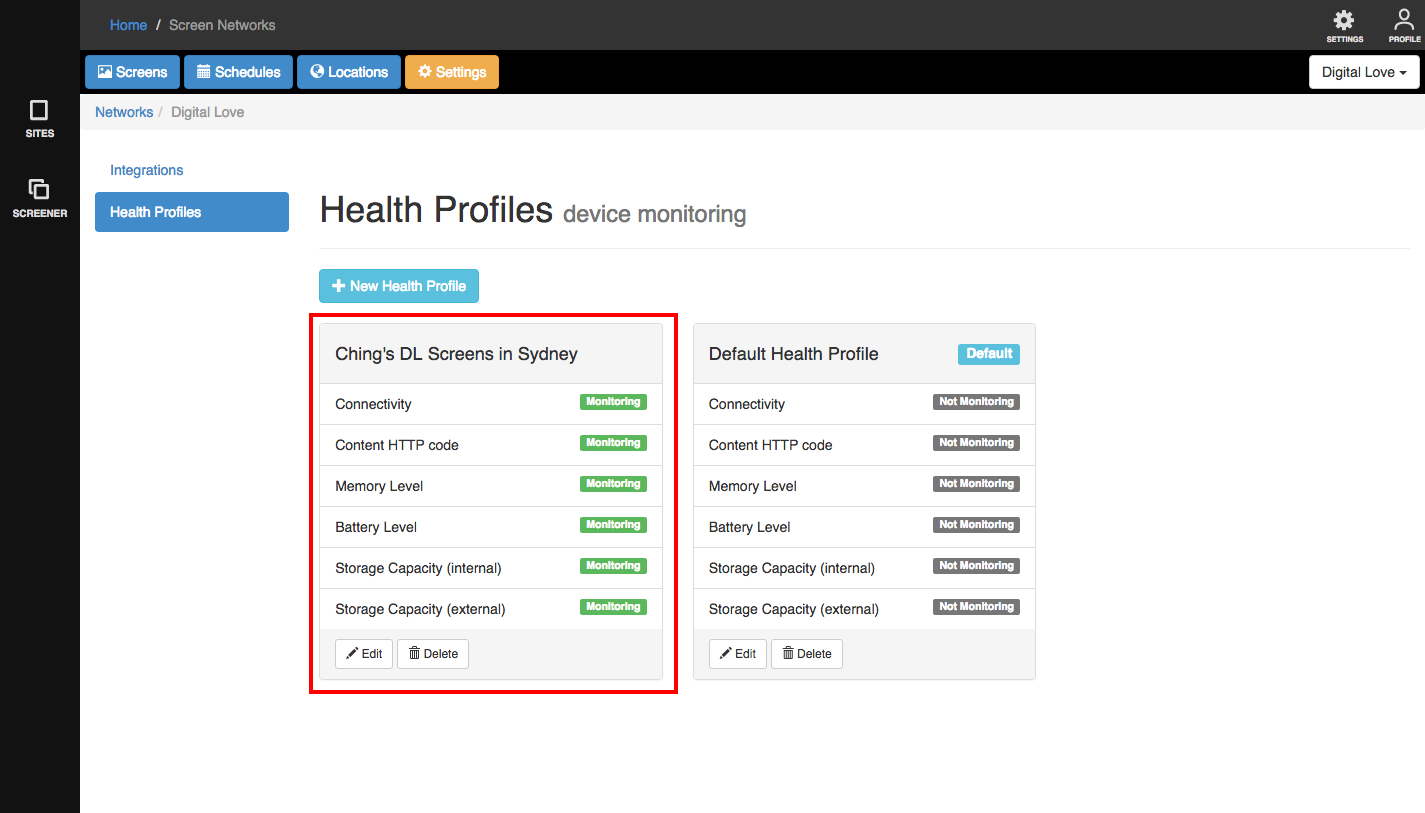
Viola! There's your new Health Profile.
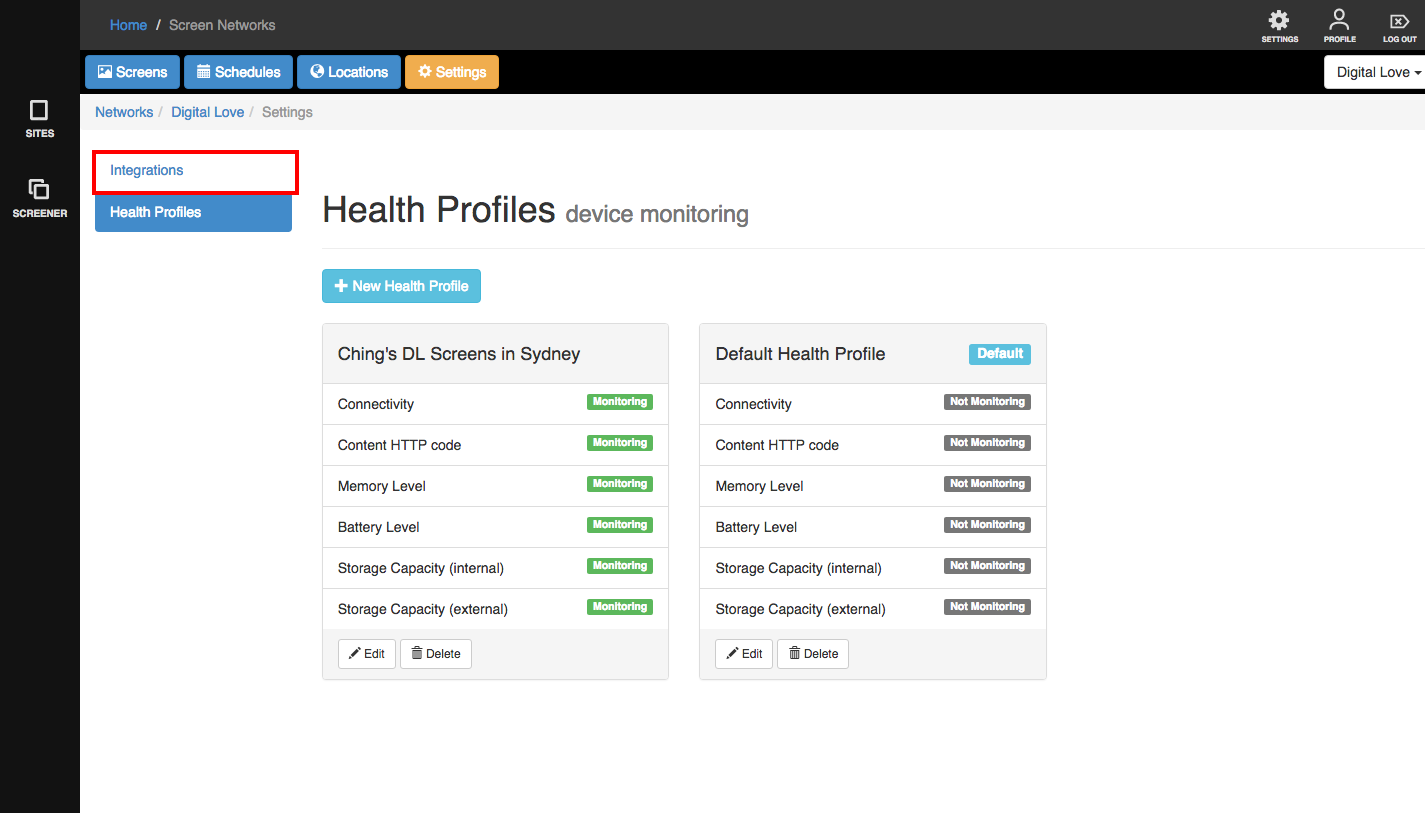
Our next goal is to create an integration.
1. Click on the 'Integrations' tab.
2. Click on "+ New Integrations".
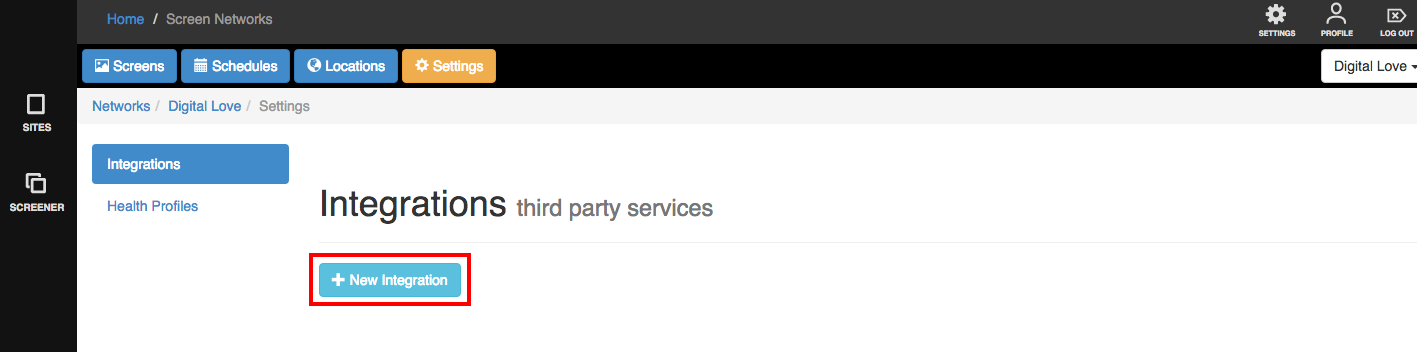
You will see applications that are currently available for integration with Screener. We will explain these in detail in another article in the Help Centre.

Let's say you'd like Screener to email you the alerts.
3. Click on the '+ Add Email' button.
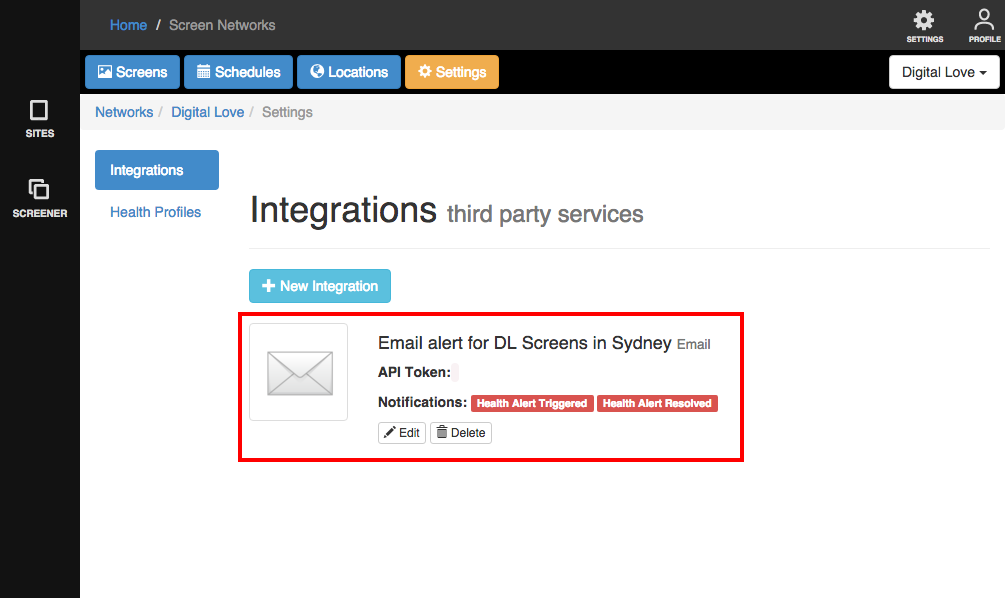
A lighbox will appear. Fill it up with the name you wish to use for this integration and the email(s) where you want the alerts to send through.

4. Click 'Create Email Integration' when done. There is your new email integration.
Let's add a device you want to track to our new Health Profile.
1. Go back to screens and click the check box beside the name of the device(s) you wish to track.

2. Then click "Health Profile".
A lightbox will appear with a drop down menu. Choose the name of the Health Profile you created and click 'Apply Health Profile'.

A confirmation will appear telling you that the device has been added to that health profile.
*You can re-assign any device to another health profile as easy as changing its Schedule. We'll discuss this in another article.
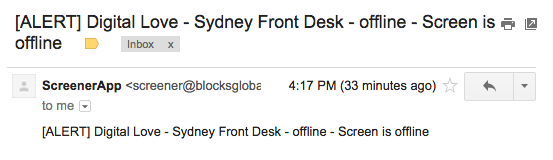
Should your device go offline, battery has gone below, or whatever condition you've set up on your health profile, you will receive an alert which will look like this.