In order to make sure you do not forget your password, or to ensure your account security, it would be best to change it from time to time.
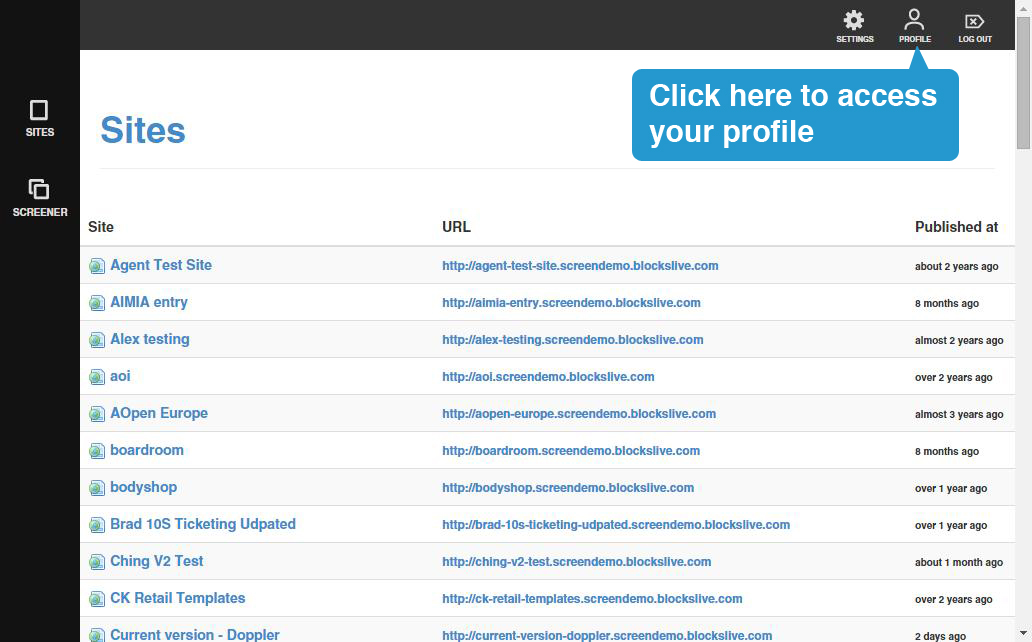
1. To begin, click the person icon on the upper right side corder of the screen.
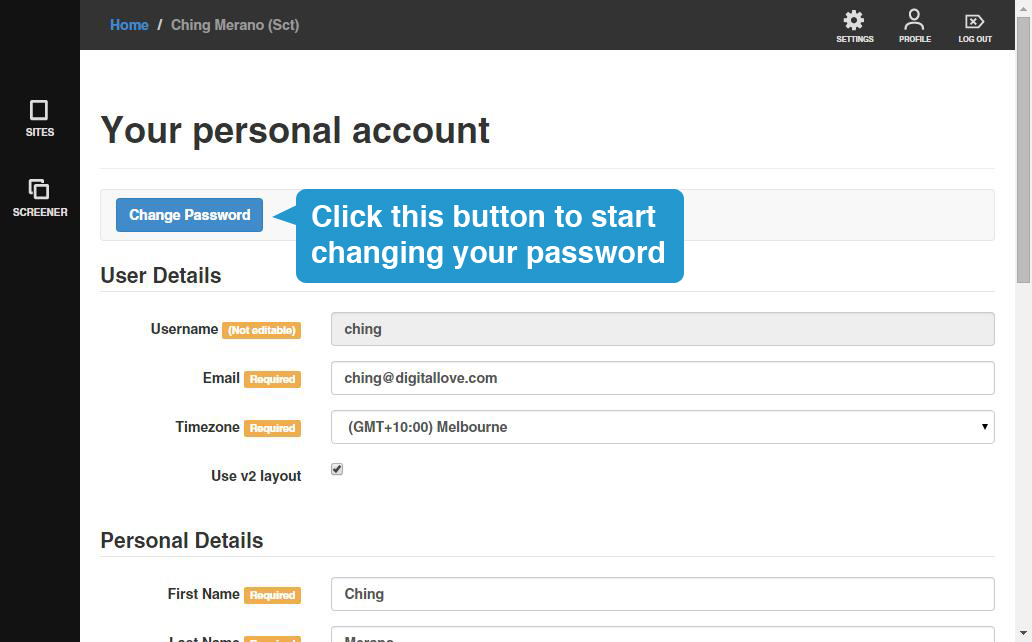
2. You will be taken to your account details. Click on the "Change password" button.
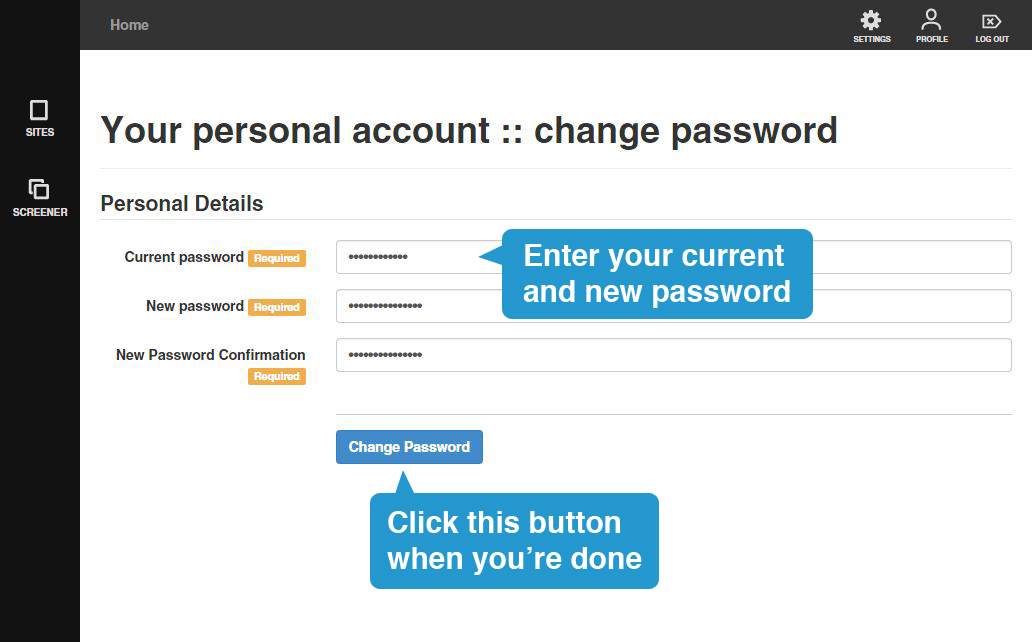
4. Type your current and new password on the 3 fields and click 'Change Password'. The new password will take effect immediately.
Tip: Choose a password that is easy enough for you to remember - but difficult enough for other people so they can't easily access your account.
Note: Only the registered user of the account can change their own password. The administrator does not have access to change passwords.