Screener can play any website that works on a Firefox browser, if you wish to use your current website as the external content source, here are a list of things to consider:
- Can users get navigate through the website without using any browser button, as these are not available on Screener.
- Remove any “pop-up windows” or links to external websites.
- Is your website built for touch?
- Will your website work in offline mode? i.e. Do you have any forms or database data that requires a live network connection?
When you’re ready to create the schedule, log into your Screener account and screen network.
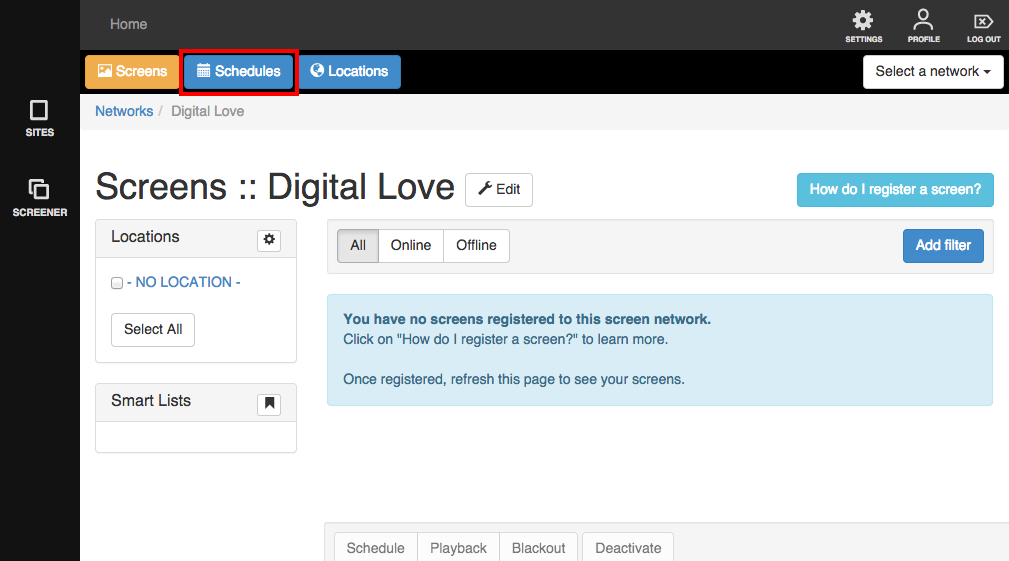
1. Click on 'Schedules' to begin.
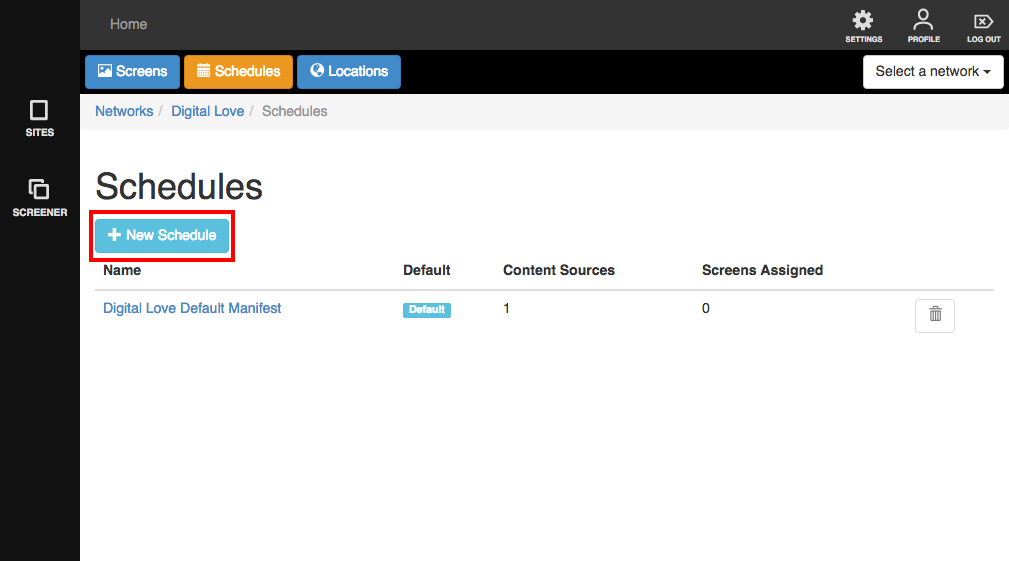
2. Click on '+ New Schedule'
3. A lightbox will appear with fields you will need to fill up.
- Name - the name of your schedule. It would help to specify which content it plays and how it is different from your other schedules so you can easily spot it.
- Description - some other details that will help you easily identify your schedule
- Content Source - choose External, a blank Source* field will appear where you can place your external site URL, Start (To indicate which page you'd like to show on your screen), Type (choose Online), username and password (for GITs).
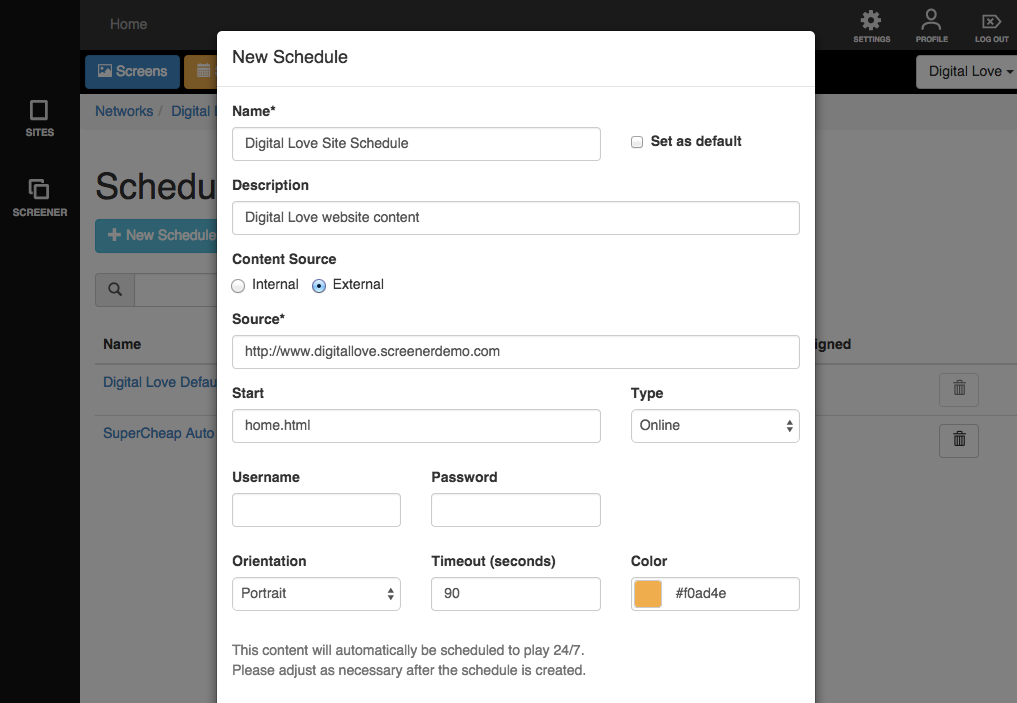
- Orientation - You also need to specify the orientation of your device. You can choose between Portrait, Landscape, Reverse Portrait, Reverse Landscape and Dynamic. This will depend on how your device was physically set up. You don't want your content upside down now do you? :)
- Timeout - How many seconds should your device be idle (meaning no interaction with your customers) before it goes back to its Start page?
- Color - is the colour of this content in your schedule.
4. When you're all done, click "Save".
You will be brought to this page, which shows you the details you've earlier indicated in the form.
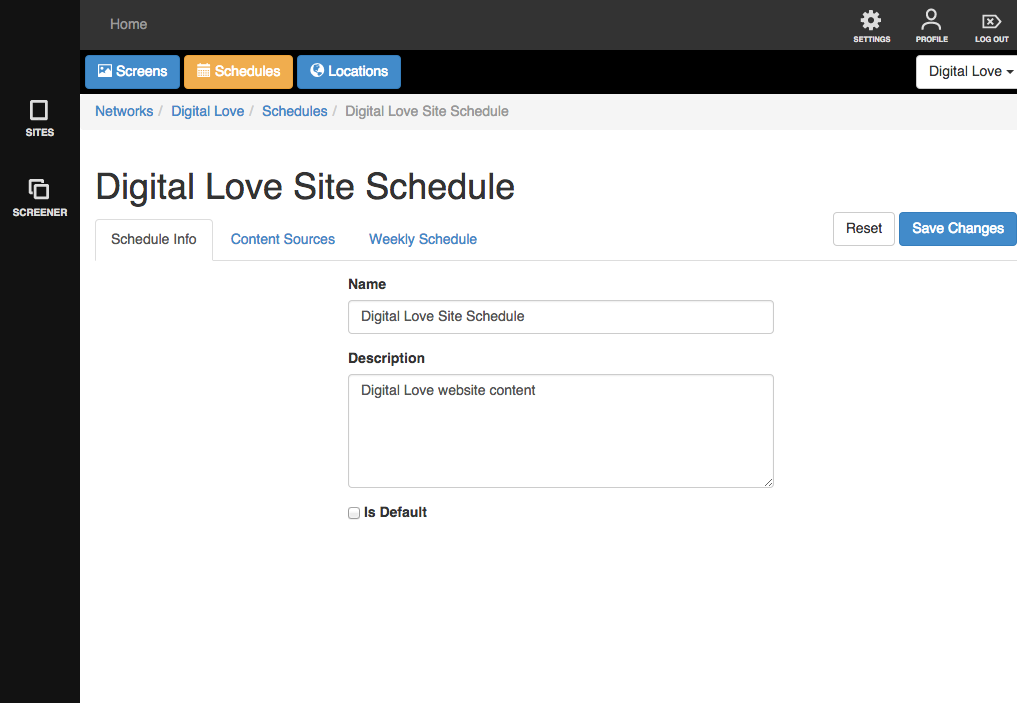
There are 2 other tabs - Content Sources and Weekly Schedule.
- Content Sources - This will show all the content sources you have on your schedule. You can have multiple content sources. You can play different contents every hour or even every 15 minutes if you want.
- Weekly Schedules - by default, schedules are set to play 24/7. You can change this, of course.
Everything you've set here can be changed if needed.