Using the Filter
Screener has a couple of filters you can use in order to find or sort out your devices, especially if you're managing hundreds of 'em.
To start using filters, click on 'Add Filter'.
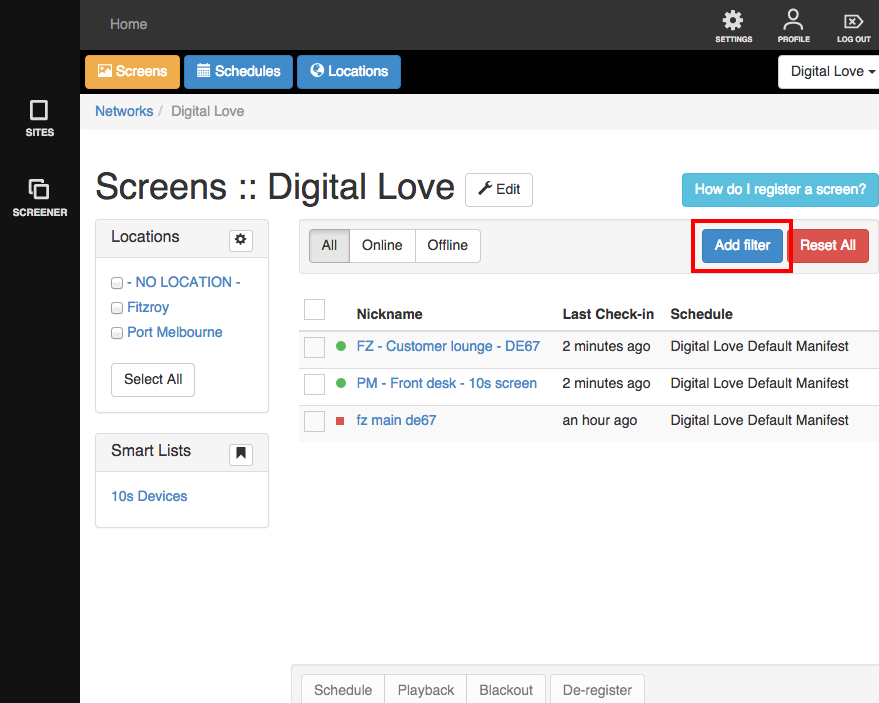
Choose the filter you wish to use:
- Nickname
- Schedule name
- Unique ID
- Registered at
- Last seen at
- AC connected
- Activity
- Agent version
- Battery level
- Battery temperature
- CPU temperature
- Currently playing
- Currently playing code
- Device architecture
- Device build
- Device model
- Device resolution
- Device timezone
- External storage capacity
- External storage remaining
- Internal storage capacity
- Internal storage remaining
- IP address
- Latitude
- Longitude
- MAC address
- Memory capacity
- Memory usage
- Network type
- Orientation
- Store & forward queue length
- System uptime
- Wifi speed
- Wifi ssid
- Wifi strength
And set some parameters. True or False, Equal to or greater than or less than a number, name starting with a few letters. It's up to you!

If you want to add more filters, just click 'Add filter'.
Using the Smart Lists
Smart lists are cool. They automatically update as you add more or remove devices to your screen network, depending on the parameters you've set. This is great for managing your devices. You might want to set some up so you can easily monitor which devices are doing what, or which devices might need a visit.
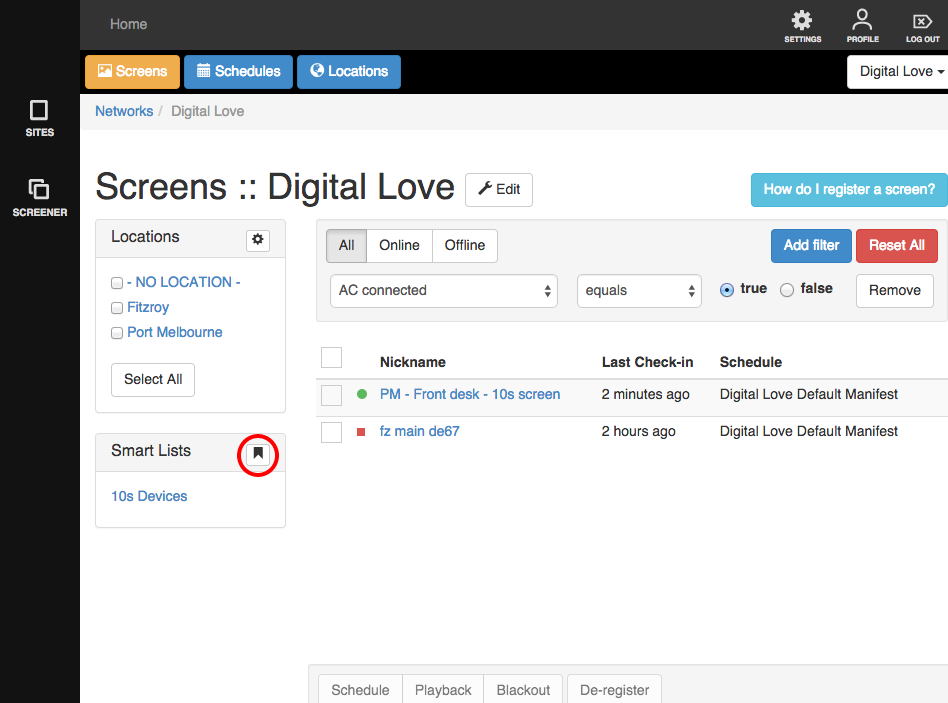
If you have sorted out your devices through filters and want to save the current list as a 'Smart List', simply click on the flag icon beside Smart Lists.
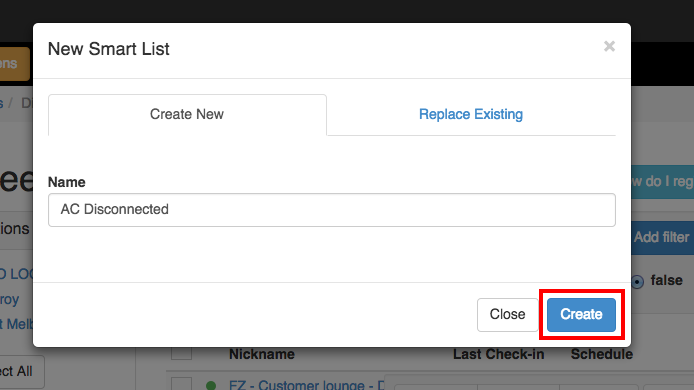
A lightbox will appear.
Name your new smart list depending on the parameters you've set and click 'Save' when you're done.
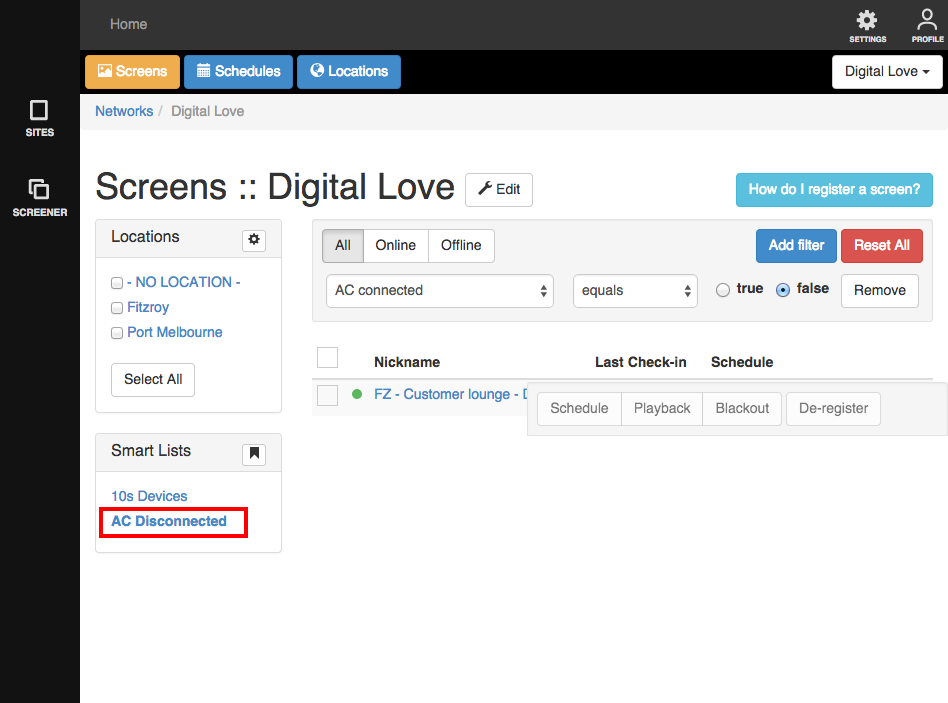
You now have a smart list that tells you (for example) which devices are not plugged in and may need your attention.