So you've set up your screen network. The next step is to create a schedule which you can push to your device.
1. While you are in your screen network, click on 'Schedules' to begin.
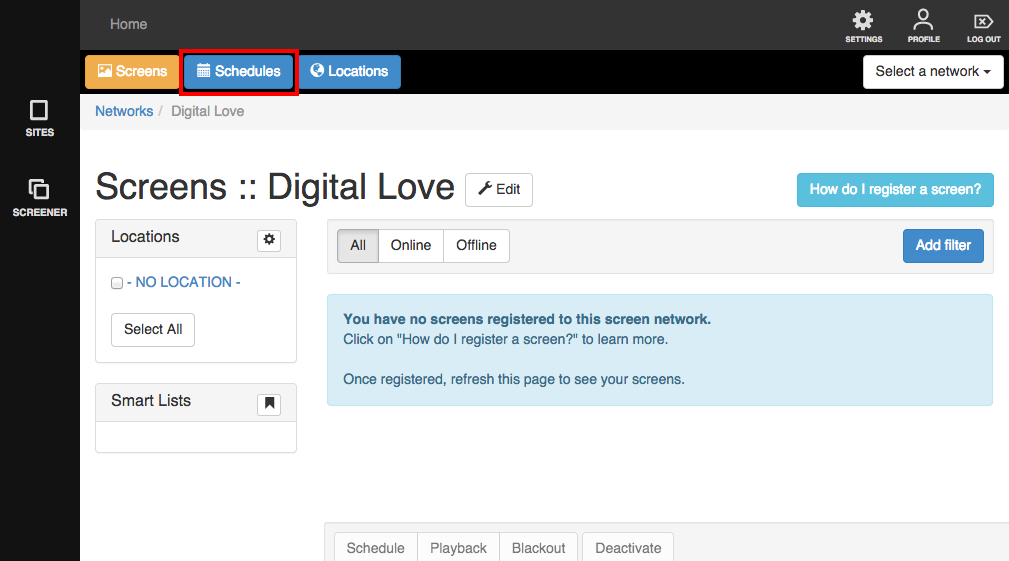
There will be a default schedule available. This is automatic.
2. Click on '+ New Schedule'
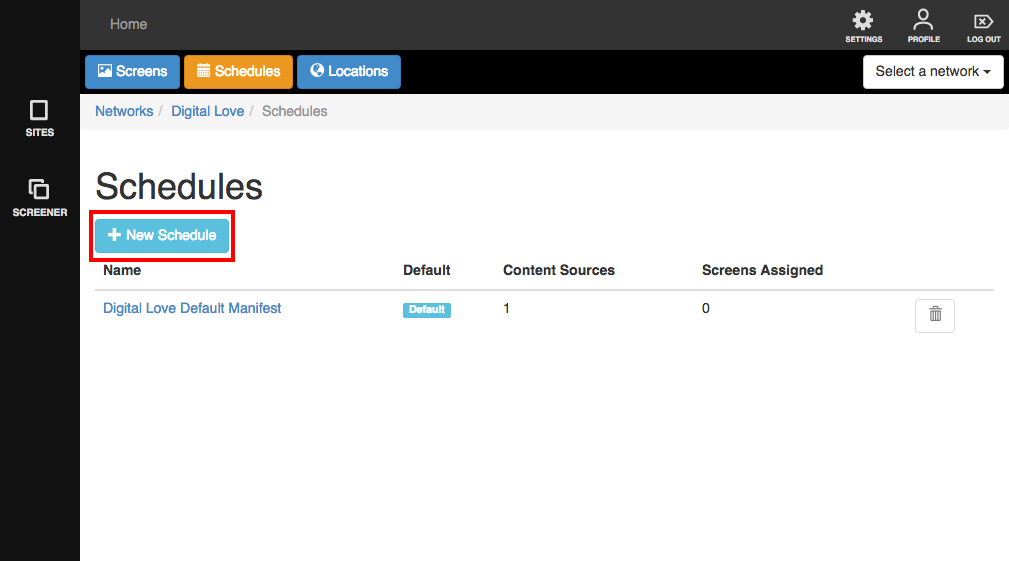
3. A lightbox will appear with fields you will need to fill up.
- Name - the name of your schedule. It would help to specify which content it plays and how it is different from your other schedules so you can easily spot it.
- Description - some other details that will help you easily identify your schedule
- Content Source - You can choose between Internal and External. If you choose 'Internal' you will a drop down menu will appear showing the names of Sites inside Screener. You can then choose which page to play first.

- If you choose External, a blank Source* field will appear where you can place your external site URL or GIT URL. Other fields include: Start (To indicate which page you'd like to show on your screen), Type (choose Online if your source is a site and GIT if it's a GIT), username and password (for GITs).
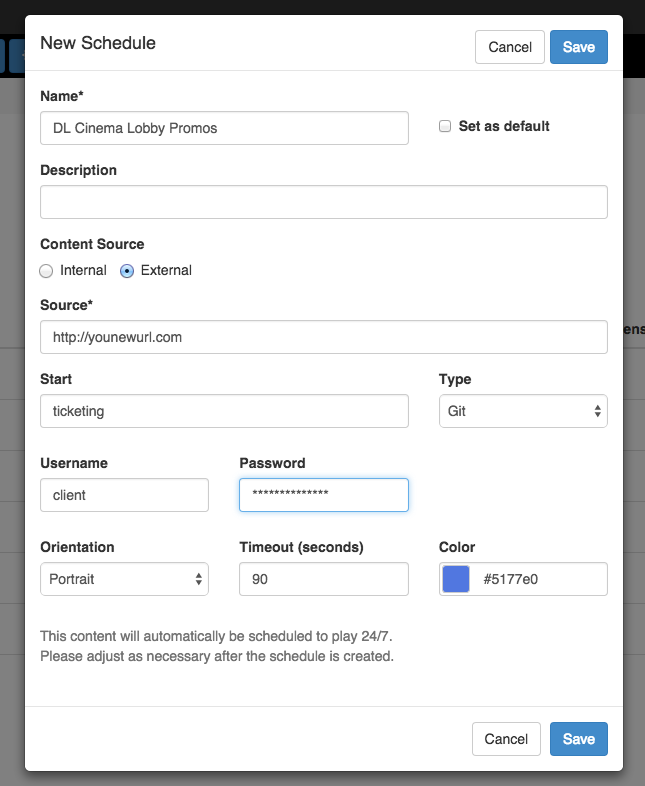
- Orientation - You also need to specify the orientation of your device. You can choose between Portrait, Landscape, Reverse Portrait, Reverse Landscape and Dynamic. This will depend on how your device was physically set up. You don't want your content upside down now do you? :)
- Timeout - How many seconds should your device be idle (meaning no interaction with your customers) before it goes back to its Start page?
- Color - is the colour of this content in your schedule.
4. When you're all done, click "Save".
You will be brought to a page that shows you the details you've earlier indicated in the form.
There are 2 other tabs - Content Sources and Weekly Schedule.
- Content Sources - This will show all the content sources you have on your schedule. You can have multiple content sources. You can play different contents every hour or even every 15 minutes if you want.
- Weekly Schedules - by default, schedules are set to play 24/7. You can change this, of course.
Everything you've set here can be changed if needed.