For content to download and remain up to date, you need to connect the device to the internet. Once content is downloaded, the device can run offline as long as your schedule is setup to accommodate this.
When you first turn on your device, you will be guided through the registration process step of Connecting your device to the internet, so your device should be connected from this point on.
Let's say after some time, your device is offline and to re-connect it . Here are the steps:
- Do the Hourglass swipe.
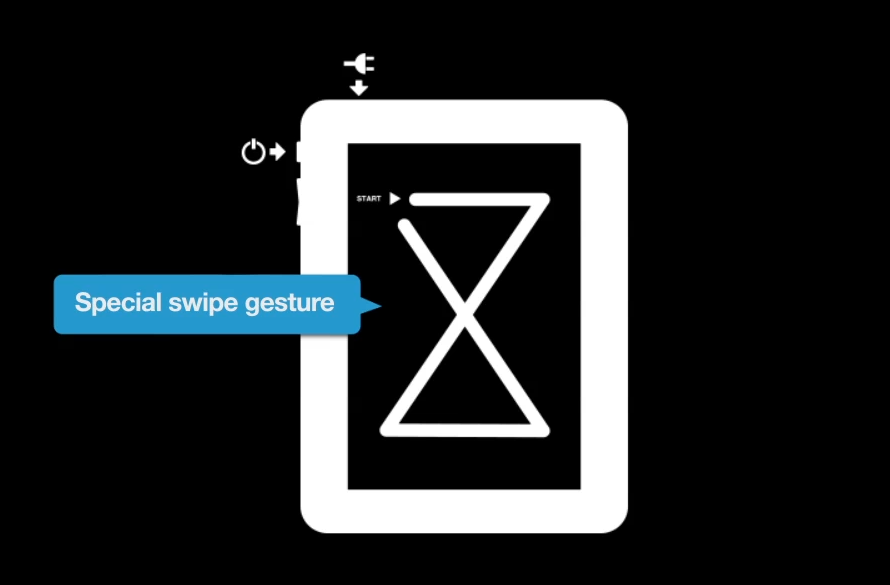
- Enter your screen network password (If you do not know what your password is, please coordinate with your account administrator)
- Click on 'Connect to Internet'
- Select your preferred network - Wi-fi, 3G or Ethernet
- If you’re using WiFi, enter the details to access the router. If you're using ethernet, the device should be able to detect it if it's hooked. If you're using 3G, you'd be able to search through available networks.
Still having problems? Check your router or your ethernet connection. If you are using WiFi or 3G, check your internet connection. You can do this by using other devices.
If you're still experiencing issues, please contact your account administrator for Level-1 troubleshooting.
To know more about Level 1 troubleshooting, click HERE.