Schedules are set up in hour time slots by default, however this can be changed to 5, 10, 15 or 30 minute time slots.
An example is setting content to display from 8:45 AM to 6:15 PM instead of being restricted to 9:00 AM to 6:00 PM, based on the screen’s [timezone].
To do this, follow the steps below:
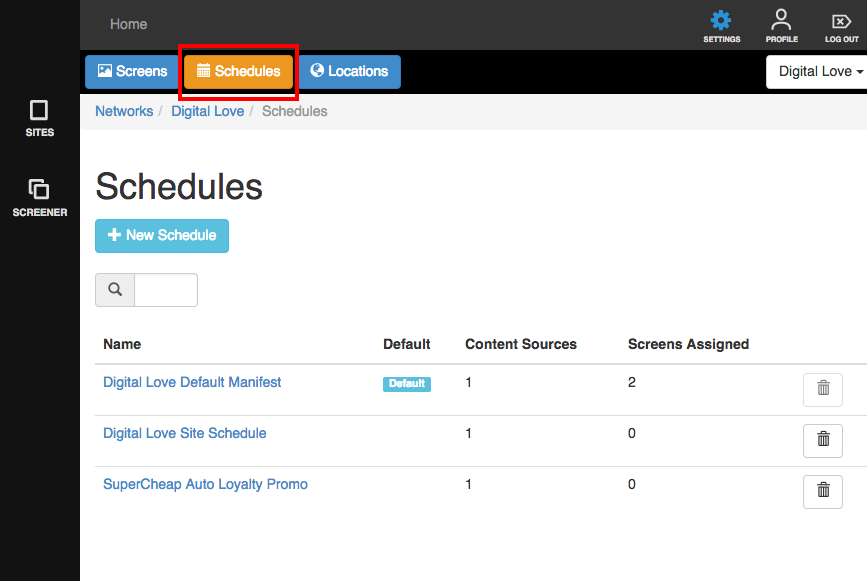
1. Access your Schedule in your Screener account and by clicking on 'Screener' > the name of your Screen Network > Schedules > the name of your schedule
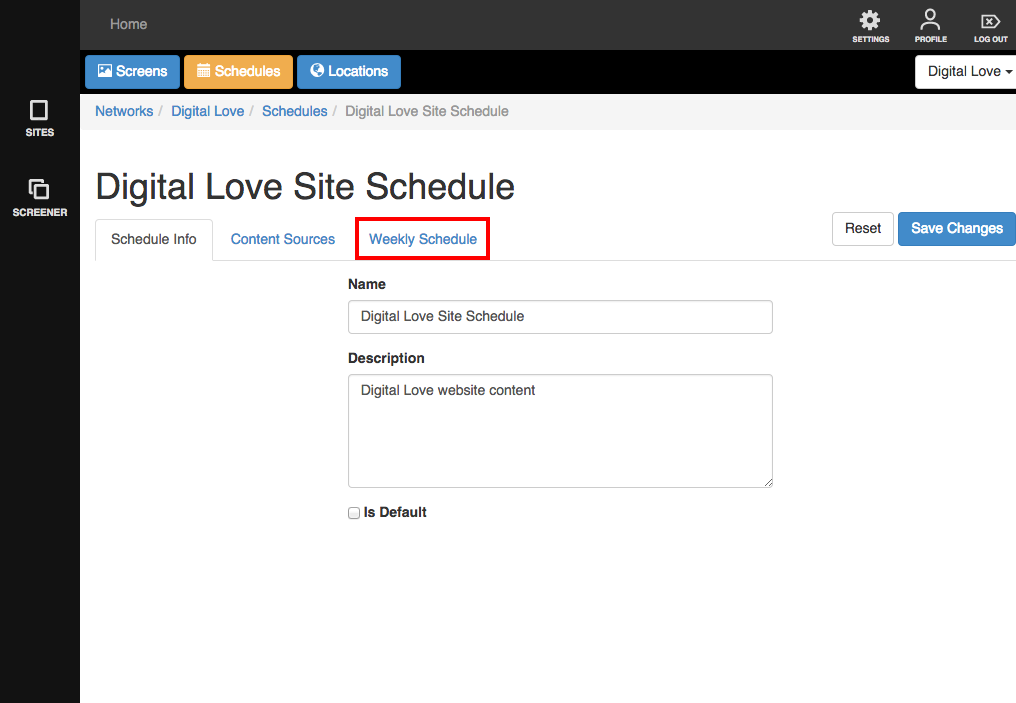
2. Click on the Weekly Schedule tab.
3. Choose the time slot duration that you want. Available choices are 15 min, 30 min and 1 hour.
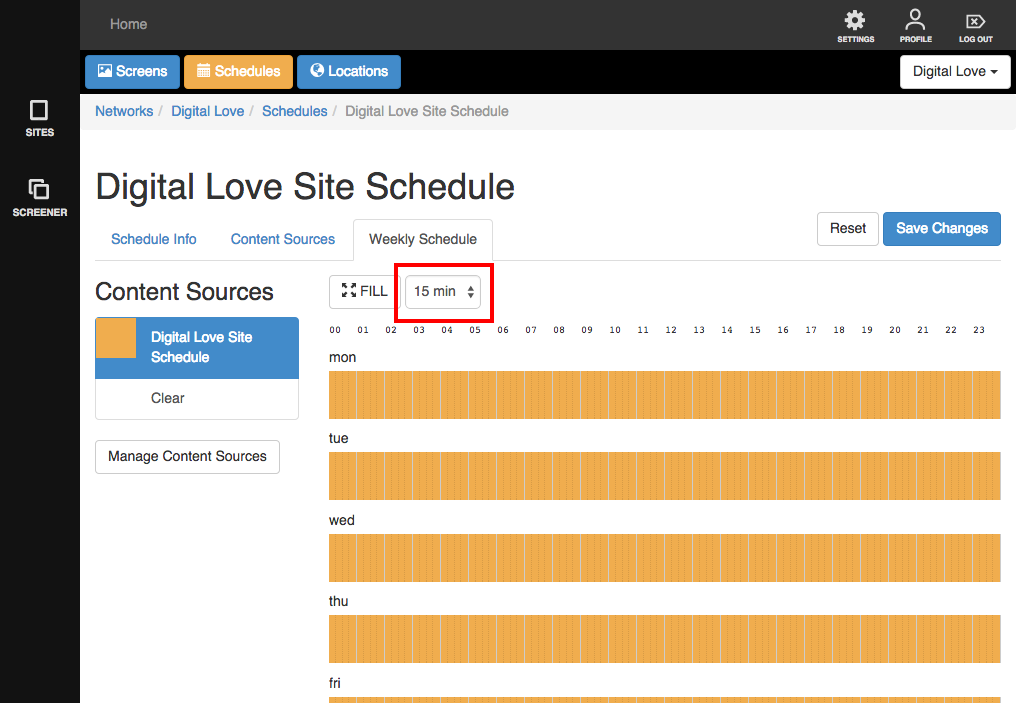
4. Adjust the time allocation bars within the schedule
5. Click on 'Save Changes’ when you're done.