Curious where your site's traffic is coming from or how people navigate around your site? Google Analytics can help you monitor and analyse the traffic on your site.
Publisher allows users to easily add a Google Analytics code so you can track your website's performance in terms of traffic and site visits behaviour.
If you don't have an account in Google Analytics, you need to make one before setting up the code in your site. (This is done outside Publisher )
Creating a new account in Google Analytics
-
If you have already signed up for Google Analytics or you have a Google Account (in other words, you use any other Google service, such as Google Sites), sign in to your account.
 If you do not have an account, go to the Google Analytics signup page, click Sign up now, and follow the prompts to create a Google Analytics account.
 -
We recommend you create a new Analytics account for each of your sites. On the Overview, select Create new account... from the My Analytics Accounts drop-down menu.
-
On the New Account Signup page, enter the URL of your site:
-
If you've mapped your Google site to another web address, such as www.example.com, enter that address.
-
If you haven't mapped your site to another web address, you need to enter your full site address, such as sites.google.com/site/example.
-
Also on the New Account Signup page, enter what you want to call this account in the Account Name box, then select your country and time zone. Then click "Continue."
-
On the Accept User Agreement page, read the Google Analytics Terms of Service. If you agree with these, click the box next to Yes, I agree to the above terms and conditions then click "Create New Account."
-
The next page contains a javascript code. You can ignore this code and click "Save and Finish."
After you create your new Google Analytics account, you will be directed to you Google Analytics profile screen, where the name of your tracked site should appear, followed by a Google Analytics account number in the format, 'UA-XXXXXXXX-X.' Copy this code -- known as your Analytics Web Property ID and go to Publisher .
Adding the Analytics Web Property ID (also known as the GA code) to your website using Publisher:
1. Once you're logged in to your account, go to Sites and choose your site.
2. Once you're on the dashboard, click on 'Site admin'.

3. A drop down will appear showing 9 options. Choose 'Google Analytics'.

4. Add your Analytics code in the 'Google Analytics ID' field. (NOTE: You do not have to use and copy the code snippet unless there is specifically custom script for additional tracking.)
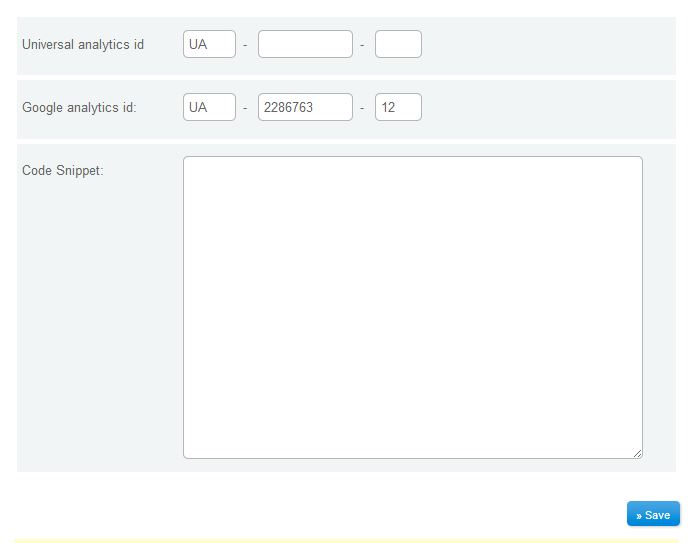
5. When you're done, click 'Save', and Publish your website.