All Editors, Publishers and Administrators can add pages.
Adding a page is an easy process. To start:
1. From your dashboard, click on the 'Sites' menu.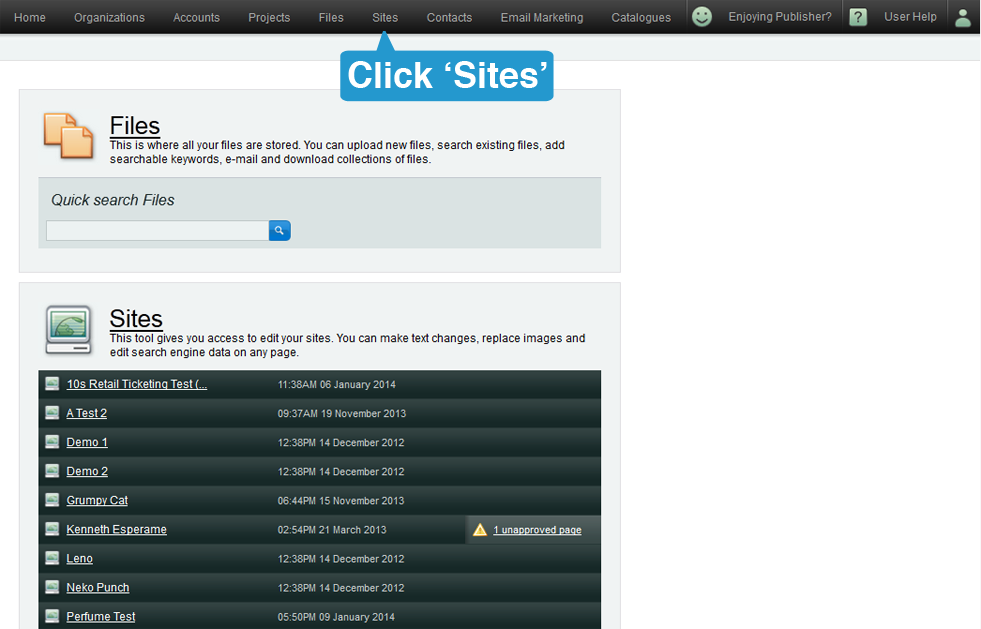
2. Choose the site where you want to add a page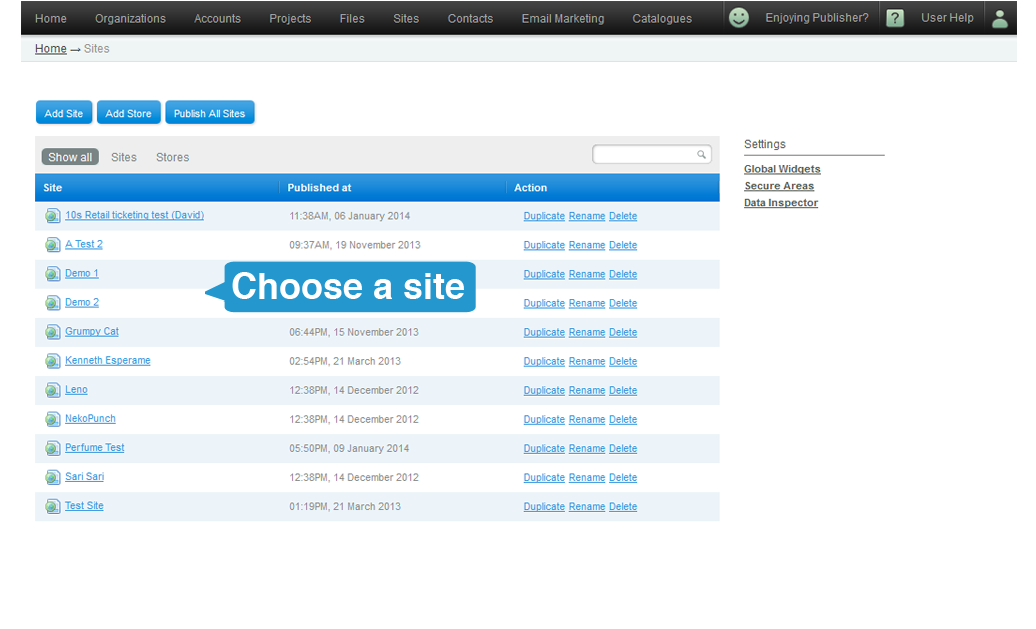
3. Click on the blue 'Add Page' button.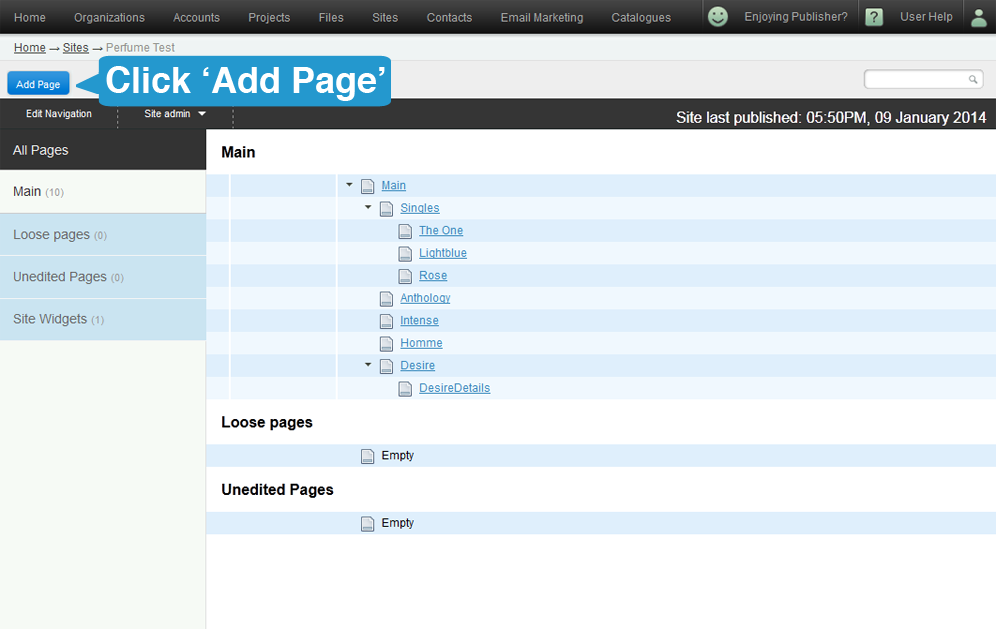
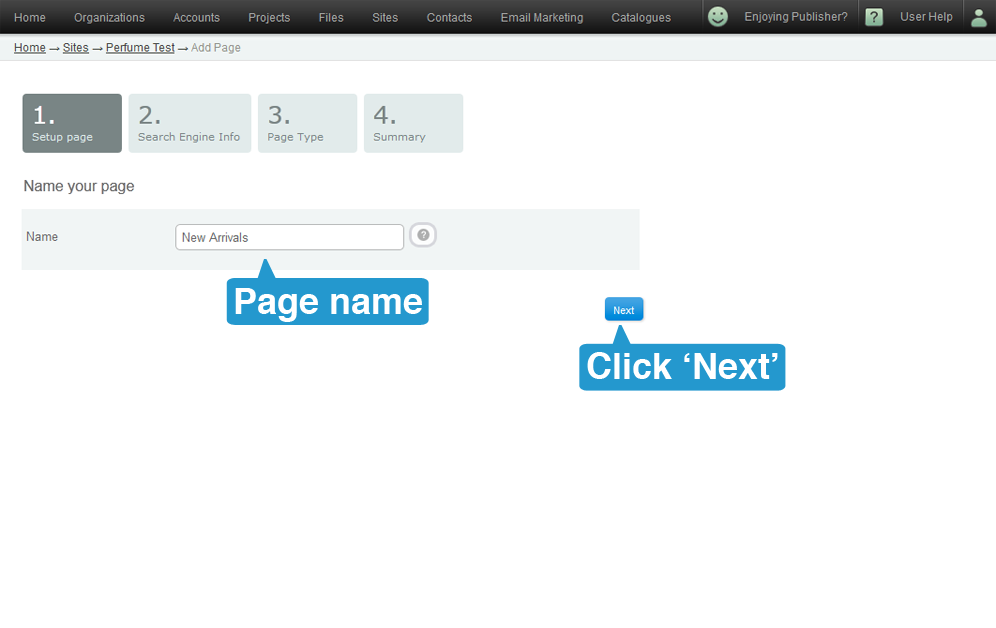
4. Name your page.
- As default, this name will be seen in the URL of your site unless you change it.
- Keep it short, and to the point.
- When done, click on Next.
5. Add search engine details to your page.
This is where you make your page easier to find to the rest of the world via search engines. Each page can be amended at any time via the 'Search Engine Information' in the Sites Editor, and it is strongly recommended that it is kept accurate and up-to-date.
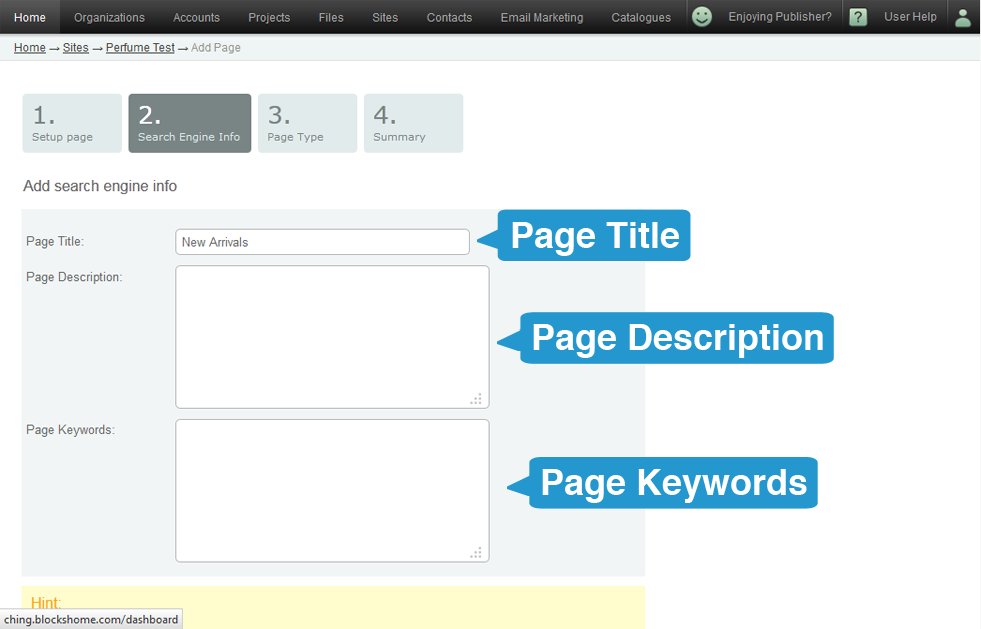
You need to complete 3 pieces of information - Page Title, Page Description and Keywords.
Page Title
- Differs to Page Name at Step 1, as this is the name that people will see at the top of their browser. By default the page name is listed in the page title field which you can now update.
- In terms of SEO ranking, page title is the most important element on the page.
- The best approach to SEO will differ from one company to another, however page naming generally follows the order of page name, then company, ie "Contact Us - Your Company".
- Each page should be named individually, ie "Contact Us - Your Company".
Page Keywords
- Are short sentences up to 2-4 words long that someone would type to find you.
- Choose keywords relevant and specific to the page, ie "contact us", "contact details".
- Only have 2-3 keyword sentences per page.
Page Description
- Is a short description of the page that will display in search results page of, ie Google.
- It should only be approximately 2 sentences / 20 words long.
- It must be specific to page, ie "contact us at Your Company for all your queries".
6. Choose a template for your page.
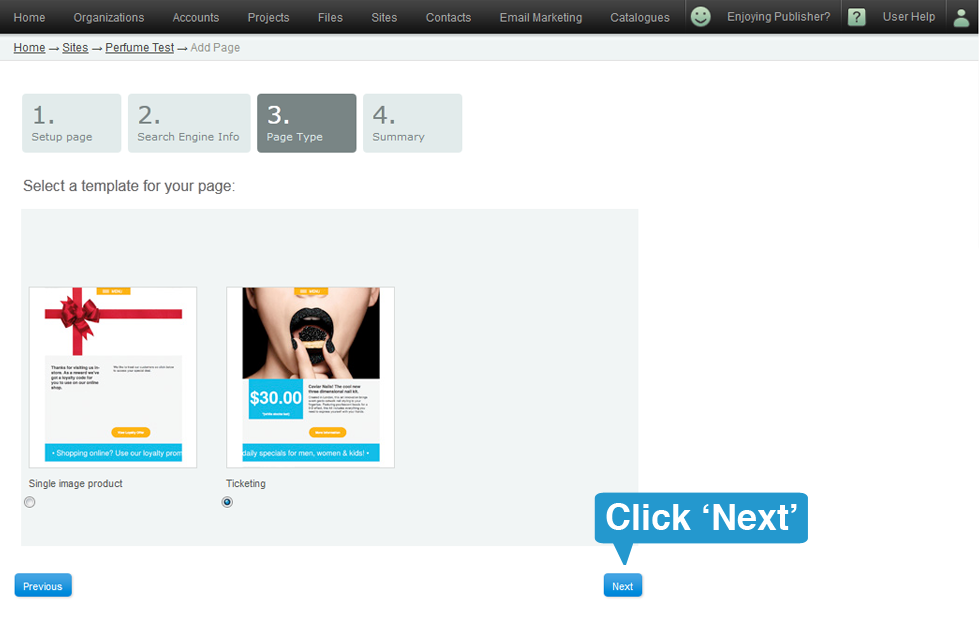
Various templates will have been created for you to work with. Choose the most appropriate template to convey the information this page will carry.
To select a template
- Click on a template thumbnail, so the blue dot is highlighted.
- Click on Next.
6. Summary
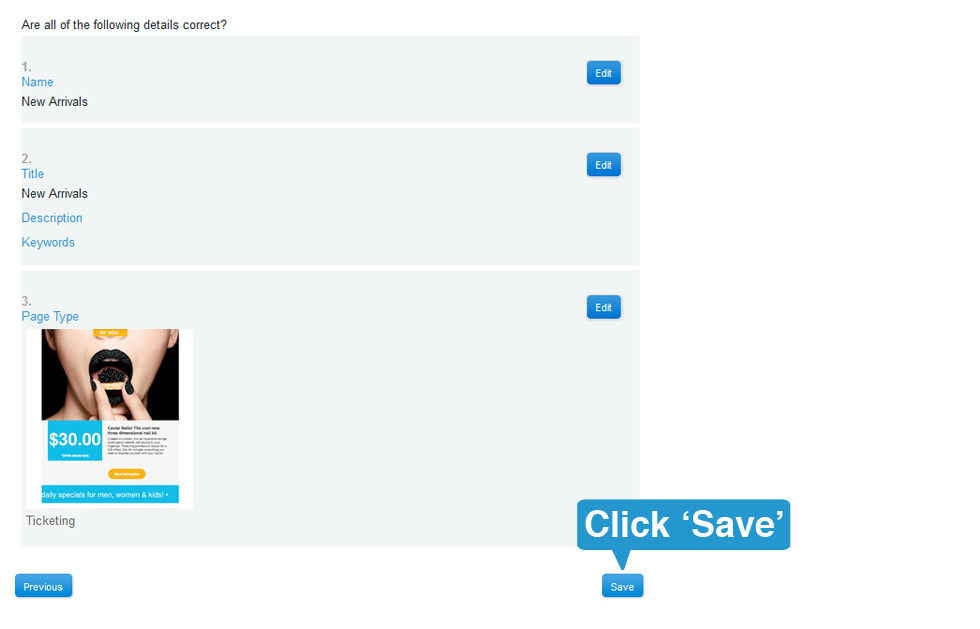
- This gives a summary of the prior 3 steps.
- If any step requires changing, click on Edit, click on Next at each step until you reach step 4.
- If all is fine, click on Save.
- You will be directed automatically to your page so you can edit it.
- Should you miss this or exit out of your account without editing and saving the page, the page you created will be sitting inside the Unedited Pages.